Friday, April 22, 2016

Skype for Business Certificate Expiration Issue - The Skype for Business Server Front-End service terminated with the following service-specific error:


Unable to start “Skype for Business Server Front-End service”

Event viewer:

The Skype for Business Server Front-End service terminated with the following service-specific error:
A required certificate is not within its validity period when verifying against the current system clock or the timestamp in the signed file.

Note: Before requesting a new certificate, we need to make sure that the Root CA certificate is installed in the Trusted Root Certification Authorities under the Local Computer Certificate Store:

Also please review the expired cert before starting the wizard so that you have necessary information request in the wizards, Example shows the SANs used my cert.

image

Step 1 – Login to SFB Server which the cert is expired.

Open Skype for Business 2015 – Deployment Wizard and click on Install or Update SFBS Systems

image

Click on Request, Install or Assign Certificates >> Run

image

you will see exclamation marks as shown below if the cert is not valid (in our case expired)

image

Click on Request button, it will bring  Certificate Request window, You’ll need to fill the form. It is very important to select ALL or domain for subject alternative names (My case I use my domain) Click for advance if you need to do some custom settings like ;

Create an Offline Request, Specify another CA, Specify different CA credentials, Use a different Certificate Template, Change key bit length and/or Mark the certificate private key as exportable and Add additional SAN names. After that, we will return to the initial Certificate Request screen

image

Review the summery if all good click on Next.

image

If the certificate request is successful, we get Task status: Completed:, for more information you can view the view log.

image

This will open the Certificate Assign wizard click on Finish

image

Before assignment check and validate the cert by View Certificate Details

image

Click on Next

image

If the certificate assignment successful you see tick marks as below.

image

Congratulation ! now you have reconfigured the cert successfully, recommend a server restart but not mandatory now you can start services manually

@roshan-

Friday, February 19, 2016

Outlook Calander Free/Busy not updating for few Users (all users sharing the same setup Exchange setup)


Problem Statement: – Scheduling a meeting request using Scheduling Assistant, few users Free/Busy information were not updated. All other users Free/Busy information was updated.

All users are in O365 and sharing the same Outlook version (Microsoft Office 365 ProPlus) with Windows 10.  Tested with some other user account all Free/Busy works fine. No major issues found only meeting organizer had the issue.

image

Solution:- Empty Auto-Complete List
Few ways of deleting this cache, U can remove all cache entries by using below method OR,

image

image

OR you can delete One by One using this method.

image

Thanks
@Roshan

Remote Connection - Tools

Technorati Tags:

Ammyy Admin - Is a multi-task solution used as remote access software for remote server administration, distant assistance, education and much more.http://www.ammyy.com/en/s_home.html. Ammyy Admin is free of charge for non-commercial use. This supports only for Microsoft Operating Systems. They also have few more paid products such as Skype recorder and Router software.

ammyy_admin_main_window

TightVNC - Is a free open source remote control software package.

Free for both personal and commercial usage, with full source code available,
Useful in administration, tech support, education, and for many other purposes,
Cross-platform, available for Windows and Unix, with Java client included,
Compatible with standard VNC software, conforming to RFB protocol specifications.

http://www.tightvnc.com/

UltraVNC - Is a VNC application that is tailored towards Windows PCs, with several features not found
in other VNC products.

http://www.uvnc.com/products/uvnc-server.html

PCHelpWare - Is customizable: you can create your own server package with your logo and -company- name
The individual you want to remotely assist only has to download and execute your customized package.

-Security: Build-in communication encryption (TWF 256) and DH key exchange (using a 512 prime)
-File transfer (using clipboard style Copy/Paste : ctr-alt-c, ctrl-alt-v)
-Text Chat
-Clipboard transfer (Text, RTF, HTML, pictures)
-Scalable and easy to use Viewer. Various color modes to fit bandwidth at best
-International keyboard support
-Additional password if wanted

http://www.uvnc.com/products/pchelpware.html 

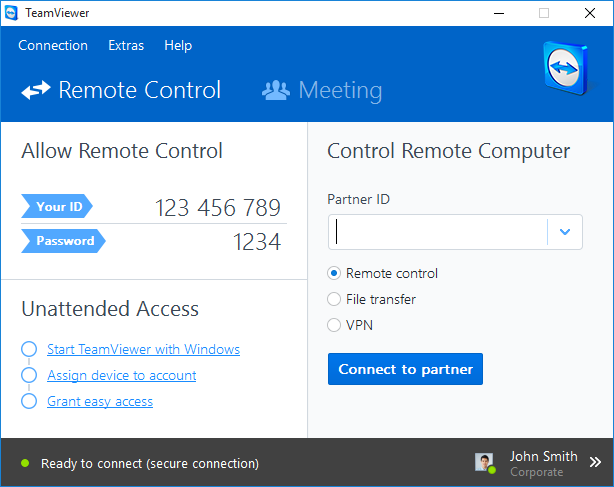
TeamViewer - Is free of charge for non-commercial use. Cutting-edge remote support and online collaboration. Team Viewer is a highly secure remote maintenance solution. Your connections are established via fully encrypted data channels using 2048-bit RSA key exchange and 256-bit AES session encryption.

https://www.teamviewer.com/ 

Thanks
@Roshan

Monday, February 8, 2016

Failed to disable the mailbox 2c6758c5-8013-4b9a-b4b3-400901e3124b due to a conflict in directory settings.


Scenario

Unable to remove cloud user mailbox which is synced from on premise server,

Error on the Admin Portal when select the user: Exchange: Failed to disable the mailbox 2c6758c5-8013-4b9a-b4b3-400901e3124b due to a conflict in directory settings. To disable this mailbox, first run Enable-RemoteMailbox on-premises. After the next Dirsync sync cycle, run Disable-RemoteMailbox on-premises to disable this mailbox in the datacenter.

image

The Fix
Example: I am using “Karif Geneva” as my problematic user.
You can check the Routing E-mail Address using the EMC for another user and make sure it's domain is correct. Check below,

image

Enable Remote user Mailbox
Enable-RemoteMailbox karifg@yourdomain.com -PrimarySmtpAddress karifg@yourdomain.com –RemoteRoutingAddress karifg@tenant.onmicrosoft.com

Add additional email alias to users
Set-RemoteMailbox -Identity karifg@yourdomain.com -EmailAddresses @{add='karifg@service.yourdomain.com'}

Disable user mailbox now
Disable-RemoteMailbox karifg@yourdomain.com

Logon to EMC or Online portal and check whether the user mailbox is removed.

Thanks
@Roshan

Wednesday, January 6, 2016

Message Tracking in Microsoft Exchange 2010


In Microsoft Exchange Server 2010, the message tracking log is a detailed record of all message activity as messages are transferred to and from the Transport service on Mailbox servers, mailboxes on Mailbox servers, and Edge Transport servers.

Supported parameters

Get-MessageTrackingLog [-ServerServer:Identity.] [-ResultSize:Integer | Unlimited] [-Start:DateTime] [-End:DateTime] [-EventId EventId] [-InternalMessageId:InternalMessageId] [-MessageId MessageId] [-MessageSubject: Subject] [-Recipients RecipientAddress1,RecipientAddress2.] [-Reference: Reference] [-Sender: SenderAddress]

Some Optional Parameters

EventId – Filters the message tracking log entries by the value of the EventId field
Server – Specifies the Exchange server on which you want to run this command. (Name,FQDN,Distinguished name,Exchange Legacy DN)
ResultSize -  Specifies the maximum number of results to return (The default value is 1000)
MessageSubject - Filters the message tracking log entries by the value of the message subject.

To view the 1000 most recent message tracking log entries on the server, run the following command:

Get-MessageTrackingLog

This example searches the message tracking logs on the local server for all entries from 3/28/2013 8:00 AM to 3/28/2013 5:00 PM for all FAIL events where the message sender was tester@maildomain.com.

Get-MessageTrackingLog -ResultSize Unlimited -Start "mm/dd/yy 8:00AM" -End "mm/dd/yy 5:00PM" -EventId "send" -Sender "tester@maildomain.com"

Searches the message tracking logs for all send messages and writing them to a output to a txt file:

Get-MessageTrackingLog -EventId Send | Format-List Send*,Recipient* "D:\Send Search.txt"

To search all message tracking log entries for a specific message across all Mailbox servers, use the following syntax:

Get-ExchangeServer | where {$_.isHubTransportServer -eq $true -or $_.isMailboxServer -eq $true} | Get-MessageTrackingLog -MessageId ba18339e-8151-4ff3-aeea-87ccf5fc9796@mailbox01.contoso.com | Select-Object Timestamp,ServerHostname,ClientHostname,Source,EventId,Recipients | Sort-Object -Property Timestamp

Searches the message tracking logs for date range and sender namexxxxxxx@domain.com getting the Output to .csv file or you can save it to html as well by using convertto-html:

Get-MessageTrackingLog -ResultSize Unlimited -Start "mm/dd/yy 00:00AM" -End "mm/dd/yy 21:00PM" -Sender " xxxxxxx@domain.com " | convertto-Csv "c:\messtrack.csv"

Get a grid view of Message tracking with optional Commands (Select-Object, Out-Gridview)

Get-MessageTrackingLog -ResultSize Unlimited -Start "mm/dd/yy 00:01AM" -End "mm/dd/yy 23:59PM" | Select-Object TimeStamp, ServerHostname,ClientHostname,MessageSubject,Source,Sender,Recipients | Out-Gridview

image

@Roshan

Thursday, December 10, 2015

Mailbox Permission Delegation – Full Access\ Send As\ Send on Behalf

You can use the EAC or the Power Shell to assign permissions to users or groups (called delegates). Also permissions can be assigned to user mailboxes, linked mailboxes, resource mailboxes, and shared mailboxes. You can also assign permissions to distribution groups, dynamic distribution groups, and mail-enabled security.

Full Access - This permission allows a delegate to open a user’s mailbox and access the contents of the mailbox.

Set permission Example:
Add-MailboxPermission -Identity "ThinkTelMonitor@domain.com" -User ricks -AccessRights FullAccess -InheritanceType all

Verify the permission:
Get-MailboxPermission –Identity “ThinkTelMonitor@domain.com”

Send As - This permission allows delegates to use the mailbox to send messages. After this permission is assigned to a delegate, any message that the delegate sends from the mailbox will appear to have been sent by the mailbox owner.

Set permission Example:
Add-ADPermission -Identity ThinkTelMonitor@domain.com -User Ricks -ExtendedRights "Send As"

Verify the permission:
Get-RecipientPermission -Identity ThinkTelMonitor@domain.com -Trustee ricks

Remove permission:
Remove-ADPermission -Identity "ThinkTelMonitor@domain.com" -User ricks -ExtendedRights "Send As"

Send on Behalf - This permission also allows a delegate to use the mailbox to send messages. After this permission is assigned to a delegate, the Fromaddress in any message sent by the delegate indicates that the message was sent by the delegate on behalf of the mailbox owner.

Set permission Example:
Set-Mailbox -Identity ThinkTelMonitor@domain.com -GrantSendOnBehalfTo Rickc

Remove Permission:
Set-Mailbox "ThinkTelMonitor" -GrantSendOnBehalfTo@{remove="rickc@domain.com"}

Verify the permission:
Get-Mailbox -Identity ThinkTelMonitor@domain.com | FL GrantSendOnBehalfTo

Thanks
@Roshan

Wednesday, December 9, 2015

How to Create Exchange 2010 Shared Mailbox when in Hybrid


NOTE: The shared mailboxes in the cloud will not require an O365 license as of now. So it is worthwhile to utilize the feature whenever possible.

Step – 1 >> Create a User Mailbox

Login in to one of the on premise Exchange server and open EMC

clip_image002

Navigate to ‘New mailbox’ under ‘Recipient Configuration‘

clip_image004

Select ‘User Mailbox’

clip_image006

Click on ‘New User’ and fill the user information

clip_image008

Click on ‘Next’ and select the ‘Mailbox Database’

clip_image010

Select ‘Don’t create an archive’

clip_image012

Click ‘Next’ to continue and Click ‘New’ in the next screen

clip_image013

Click ‘Finish’ to create the mailbox

clip_image014

clip_image016

Power Shell Command – Makes much easier to create mailbox without many clicks, you’ll be prompted for the Password.
New-Mailbox -Name 'ThinkTel Monitor' -Alias 'ThinkTelMonitor' -UserPrincipalName 'ThinkTelMonitor@xxxxxx.com' -SamAccountName 'ThinkTelMonitor' -FirstName 'ThinkTel' -LastName 'Monitor' -Database 'Exchange2010NSL'

Step – 2 >> Start the DirSync

a. In Active Directory Sites and Services, force replication across all sites if you have multiple AD sites.
b. From the DirSync server, force online synchronization. From an elevated Command Prompt, run DirSyncConfigShell.psc1 (from C:\Program Files\Microsoft Online Directory Sync), then type Start-OnlineCoexistenceSync.
c. Verity the Changes has been sync to Cloud.
Step – 3 >> Move on premise mailbox to the cloud
Select the Mailbox and Click on ‘New Remote Move Request’

clip_image018

Click on ‘Next’ to continue the wizard

clip_image020

Provide Proxy Server FQDN of Source\Internal
Provide Exchange admin Credentials and click on ‘Next’

clip_image022

Provide Target Delivery Domain FQDN and Click Next

clip_image024

Click ‘Next‘

clip_image026

Provide Cloud credentials and click ‘OK’

clip_image027

Click ‘Finish’ to start the move process.

clip_image029

Power Shell Command – Makes much easier to create mailbox without many clicks, Open the PowerShell ISE or shell

1. Run Windows PowerShell as Admin
2. $Cred=Get-Credential (cloud admin)
3. $Session = New-PSSession -ConfigurationName Microsoft.Exchange -ConnectionUri
https://ps.outlook.com/powershell/ -Credential $Cred -Authentication Basic -AllowRedirection
4. Import-PSSession $Session
5. $RemoteCredential=Get-Credential (on-premises admin)
6. Run New-MoveRequest with the required switches (check the log for the failed move):

Examples:
New-MoveRequest -Identity ‘ThinkTellMonitor’ -Remote -RemoteHostName exchservice.xxxxxxxx.com -TargetDeliveryDomain service.xxxxxxx.com -RemoteCredential $RemoteCredential -BadItemLimit 5 -LargeItemLimit 5
7. When finished, disconnect the session by typing Remove-PSSession $Session
Click on Move Request under Cloud Connection and monitor the progress.

clip_image031

Step – 4 >> Log in to Office 365 Portal and navigate to Admin

clip_image033

a. Click on Exchange and open recipient’s window search for ‘Think………’ Mailbox
b. From the right hand side pane Click on Convert to Shared Mailbox

clip_image035

In the warning window click ‘Yes’ to continue

clip_image036

Click Close to complete.

clip_image037

Navigate to ‘Shared’ and now you should be able to see the new mailbox ‘Think………’

clip_image039

Thanks
@Roshan

Tuesday, December 8, 2015

Disable / Junk mail, read receipts, recoverable items and automatic processing O365

 
Disabling read receipts for Microsoft Office 365 mailbox
1. Log in into Microsoft Office 365 using the journal mailbox user account.
2. Go to Outlook tab.
3. Select Settings
image icon then click Options.
4. Expand the MAIL section and click on Read receipts
5. Select Never send a response
6. Click on SAVE to save changes

image
Disable Junk Mail Options
1. Log in into Microsoft Office 365 using the journal mailbox user account.
2. Go to Outlook tab.
3. Select Settings
image icon then click Options.
4. Expand the MAIL section and Expand the Accounts
5. Click on Block or Allow and Select “Don’t move email to my junk Email folder”
6. Click on SAVE to save changes

image
Disable Automatic Processing of Calendar Items
1. Log in into Microsoft Office 365 using the journal mailbox user account.
2. Go to Outlook tab.
3. Select Settings
imageicon then click Options.
4. Expand the CALENDAR section and Click on Automatic processing
5. Un-tick  Delete invitation and responses ………… and Delete notifications about forwarded events
6. Click on SAVE to save changes

image
Disabling the Recoverable Items folder in Microsoft Office 365
You’ll need to open “Windows Azure Active Directory Module for Windows PowerShell” module
Run the following command:

1. $UserCredential = Get-Credential and key in the required credentials.
3. To start your remote session with Exchange Online, run the following command:
$Session = New-PSSession -ConfigurationName Microsoft.Exchange -ConnectionUri
https://ps.outlook.com/powershell/ –Credential $UserCredential -Authentication Basic -AllowRedirection
4. Run the following command: Import-PSSession $Session
5. To disable the Recoverable Items folder functionality, run the following command: Set-Mailbox –Identity journal –SingleItemRecoveryEnabled $False –RetainDeletedItemsFor 0
6. To disconnect your session, run the following command: Remove-PSSession $Session


-Thanks
@ Roshan